My Neovim Workflow - Git & IDE
Full development workflow in Neovim—Git with Neogit/Diffview/Gitsigns, file navigation with Telescope/Yazi, and LSP-powered editing
The Approach
I don't believe everything must live in one tool. If a dedicated app does something better, I'll use it. But bringing Git and navigation into Neovim isn't about purity—it's practical efficiency. The linkage between editing, version control, and file navigation should be immediate. Context-switching costs time.
Git: The Core of the Workflow
Git integration is where this setup really shines.
Gitsigns runs constantly, showing changes in the gutter. But the real power: stage and unstage individual lines. Not files, not hunks—lines. Changed three things but only one belongs in this commit? Stage just that line. Inline git blame shows who wrote what and when. Navigate between changes with ]c and [c.
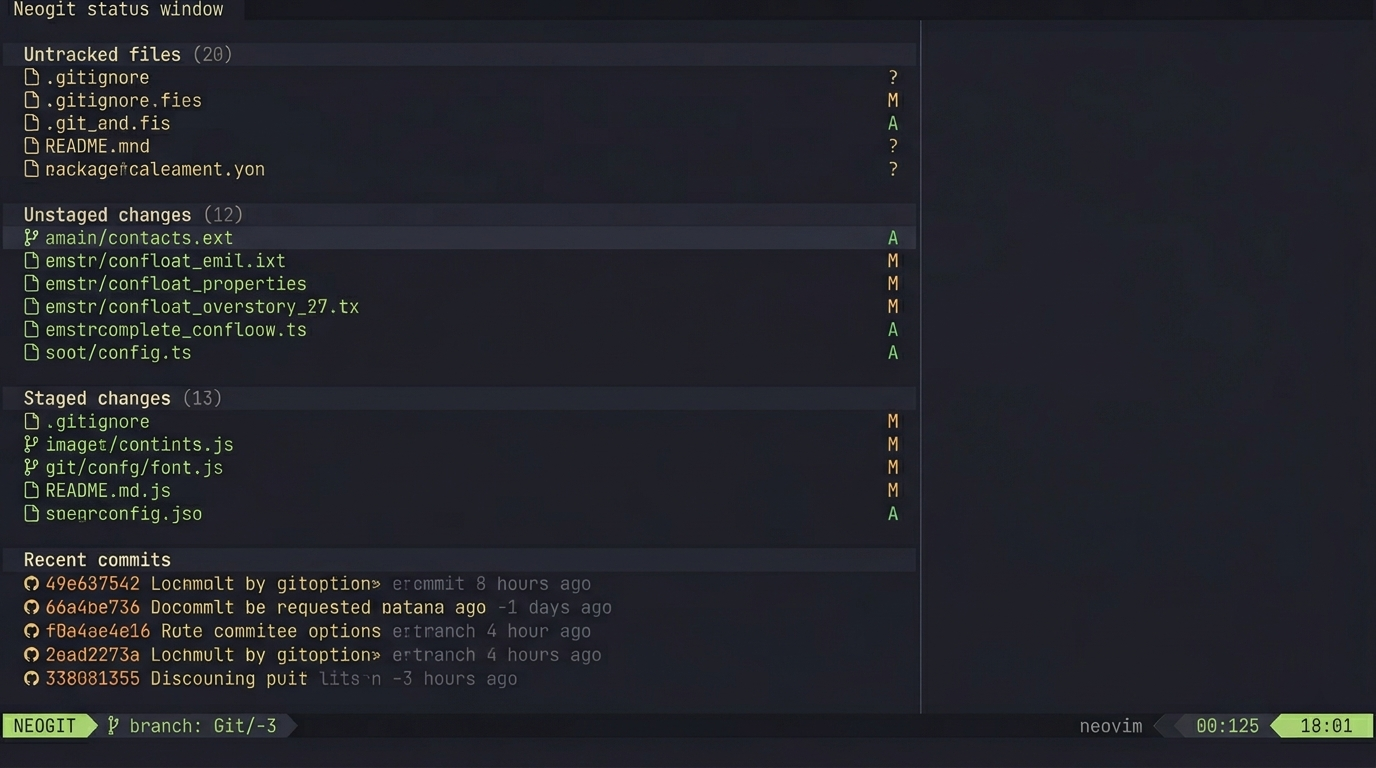
Neogit provides the full staging interface—Magit-inspired. Status view with staged, unstaged, untracked files. Expand to see hunks. Stage/unstage with single keystrokes. Commit, push, pull, branch management, stash—all visual.
Diffview handles deep comparison:
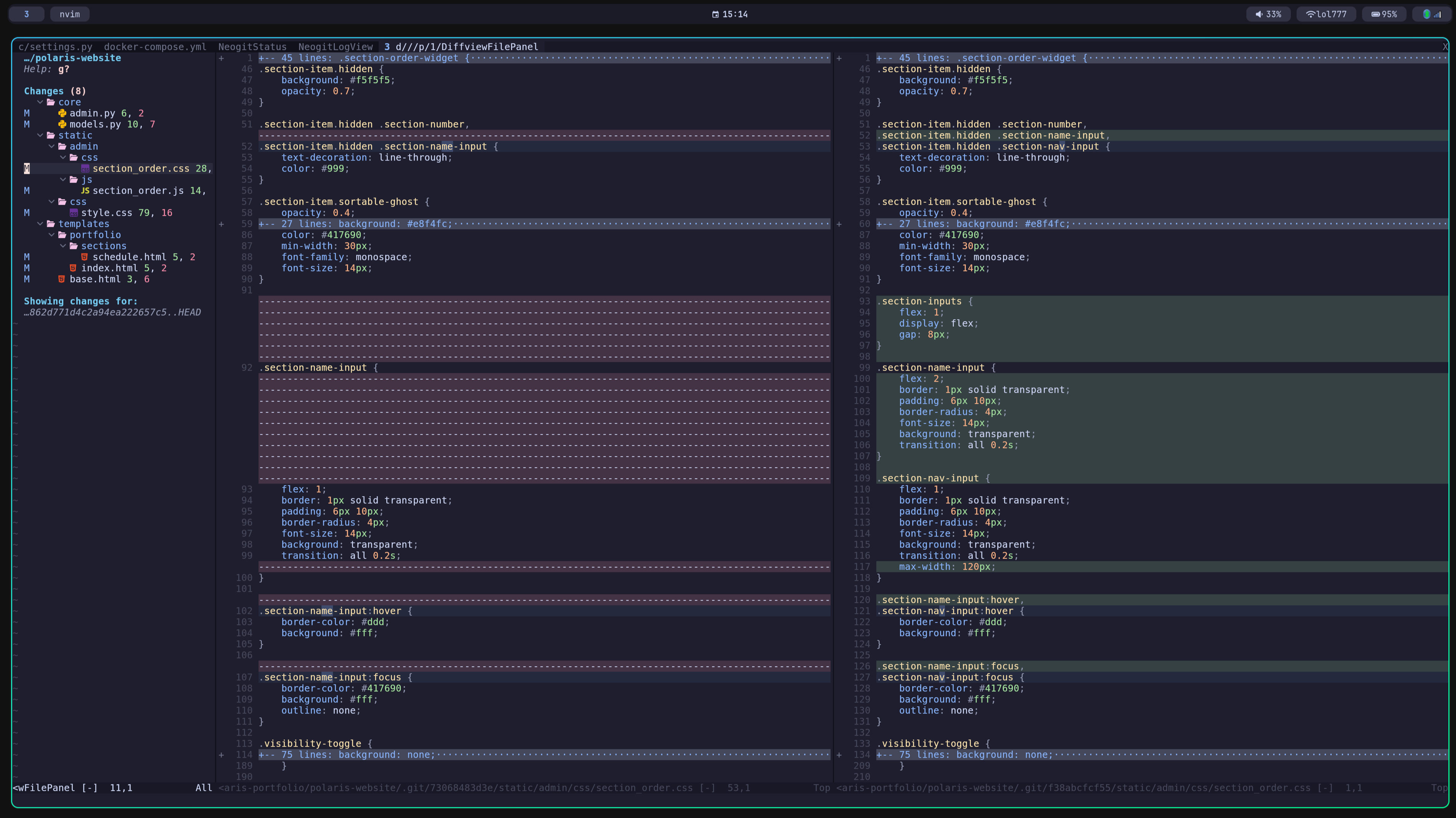
- Compare any two commits, branches, or working tree state
- Side-by-side diff with syntax highlighting
- File tree showing all changed files
- Navigate between changes with keybinds
Reviewing a PR? Open Diffview against main and see exactly what changed across every file. Need to understand what a coworker's branch does before merging? Same thing. The merge conflict resolution view is particularly useful—three-way diff showing base, ours, and theirs.
The Case for Rebase
Most people learn one Git workflow: branch, commit, commit, commit, merge. It works. But it creates messy history. Every merge commit. Every "fix typo" and "actually fix it this time" commit preserved forever. The log becomes noise.
Rebase is underrated. Interactive rebase lets you rewrite history before sharing it. Clean up your commits. Squash the five "WIP" commits into one meaningful commit. Reorder so the logical changes are in logical order. Edit commit messages to actually describe what happened.
Why don't more people use it? The CLI interface is intimidating. git rebase -i HEAD~5 opens a TODO file where you edit words like pick and squash. Easy to mess up. People learn to avoid it.
Neogit makes rebase visual:
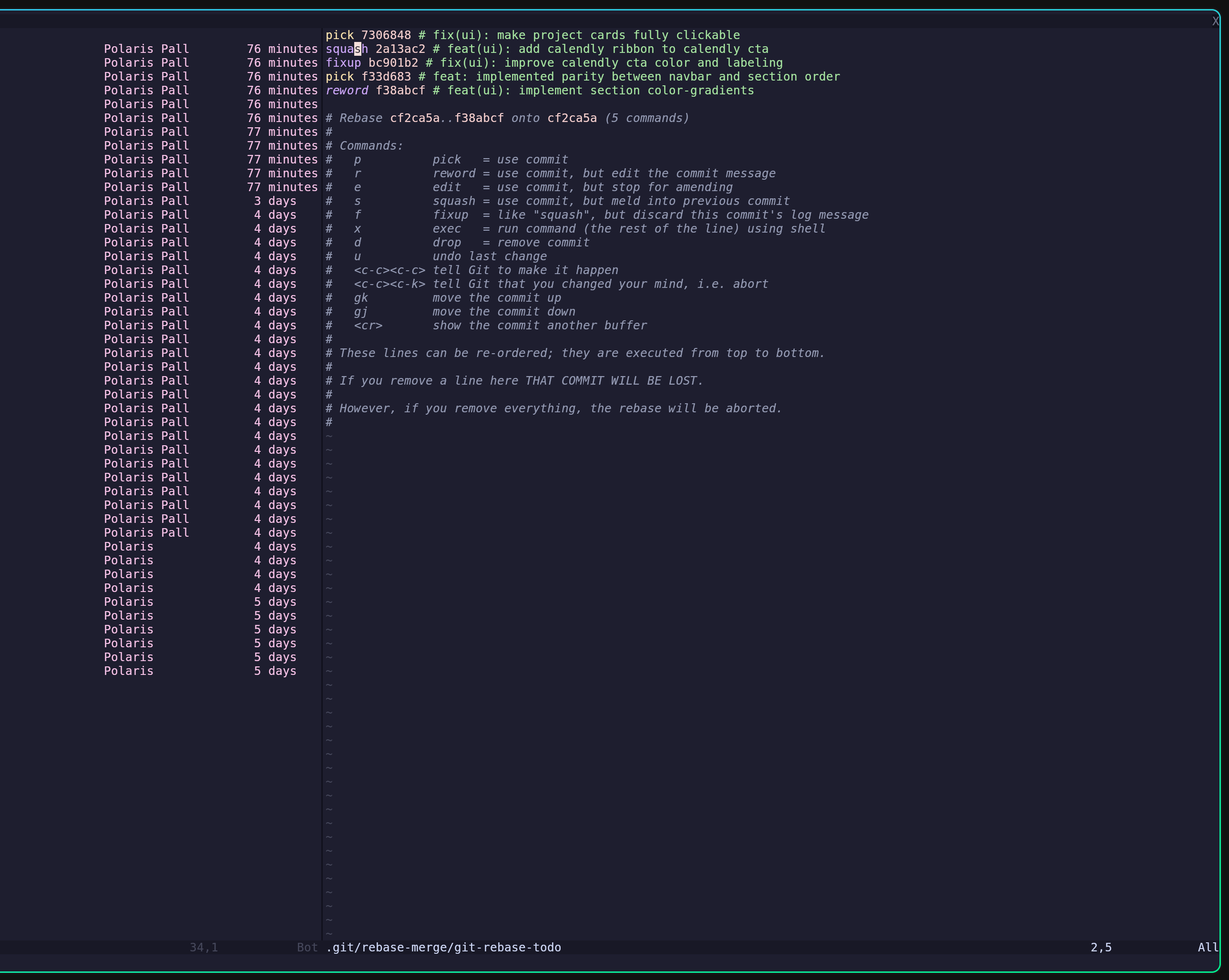
See your commits in a list. Move them up/down to reorder. Mark one as squash to fold it into the previous. Mark as edit to stop and amend. Mark as drop to remove it entirely. Edit messages inline. Execute with a keypress.
Rebase before merging. Before opening a PR, rebase and clean up. Squash the debug commits. Make each commit a logical unit of change. Reviewers see a clear story: this commit adds the feature, this commit adds tests, this commit updates docs. Not twenty commits of stream-of-consciousness coding.
Rebase onto main. Instead of merging main into your branch (creating a merge commit), rebase your branch onto main. Your commits replay on top of the latest main. Linear history. No merge commits cluttering the log.
This isn't about dogma. Merge commits have their place. But rebase is a tool too many people never learn because the interface is hostile. Making it visual and integrated removes that barrier.
The Full Workflow
Here's how all these pieces actually connect in a real development session.
Starting Work
I open Neovim in the project root. First thing: <leader>ff to Telescope into the file I need. Fuzzy matching means I type a few characters and it finds the file. If I don't remember the exact name, <leader>fg lets me grep for content—search for a function name, a string, anything. Results show in Telescope with preview. Enter to open.
If I need to explore the directory structure—maybe I'm new to the codebase or looking for something I can't name—<leader>e opens Yazi in a floating window. Full directory tree, preview pane showing file contents, vi-style navigation. I can browse, preview files without opening them, then Enter to open what I need. Yazi also handles bulk operations: rename, move, copy, delete. Sometimes that's faster than shell commands.
Editing with LSP
Once I'm in a file, the LSP is always running. Completions appear as I type—nvim-cmp pulls from multiple sources: the language server, buffer words, file paths, snippets. Tab to accept, Ctrl-n/Ctrl-p to navigate options. Signature help shows function parameters as I type them.
Errors and warnings appear inline as virtual text—I see the problem without opening a separate panel. ]d jumps to the next diagnostic, [d to previous. Hover over something with K to see its type and documentation. gd goes to definition. gr shows all references across the project. <leader>rn renames a symbol everywhere.
Code actions with <leader>ca—the LSP suggests fixes. Missing import? One keypress adds it. Unused variable? Remove it. The language server knows the semantics; I just approve the action.
Treesitter handles the syntax layer. Highlighting that understands code structure, not just regex patterns. Incremental selection with <C-space>—select the inner node, press again to expand to the outer node. Select a function body, then the whole function, then the whole class. Text objects like af (around function) and if (inside function) work because Treesitter understands the AST.
Tracking Changes with Git
While I'm editing, Gitsigns shows what's changed in the gutter. Added lines get a green bar. Modified lines yellow. Deleted lines a red triangle. I always know what I've touched.
When I finish a logical piece of work—not the whole feature, just a coherent change—I stage it. With Gitsigns, I can stage individual lines. <leader>hs stages the hunk under cursor. But if I changed multiple things in one hunk and only want to commit part of it, I visually select the lines and stage just those. This granularity matters for clean commits.
I keep working. Stage more changes as I go. The staged changes accumulate while I continue editing.
Committing
When I'm ready to commit, <leader>gg opens Neogit. The status buffer shows everything: staged changes at the top, unstaged below, untracked files at the bottom. I can expand any file to see the diff. If I staged something I shouldn't have, u unstages it. If I missed something, s stages it.
Press c to start a commit. A buffer opens for the commit message. Write the message, <C-c><C-c> to confirm. The commit happens. I can immediately p to push, or keep working.
If I've made several messy commits and want to clean up before pushing, I rebase. In Neogit, r then i starts interactive rebase. I see my commits in a list. Move them around, mark some to squash, edit messages. Execute the rebase. What would be scary on the command line is visual and safe here.
Comparing and Reviewing
Need to see what changed between branches? <leader>dv opens Diffview. Pick the branches to compare. Side-by-side diff with full syntax highlighting. File tree on the left shows all changed files—click through them to see each diff.
Reviewing a PR before merging? Diff against main. I see exactly what the branch introduces. During merge conflicts, Diffview shows the three-way diff: base, ours, theirs. Pick which changes to keep. Resolve conflicts visually instead of editing conflict markers by hand.
The Loop
This is the loop: Telescope/Yazi to navigate. LSP for intelligent editing. Gitsigns for awareness and line-level staging. Neogit for commits and rebasing. Diffview for comparison. Each tool does one thing well. They connect through keybinds and shared context.
No alt-tabbing. No context switches. The version control, file navigation, and code intelligence are all right there, connected to what I'm writing. That's the efficiency gain—not doing everything in Neovim for purity, but reducing friction where friction exists.
Practical, Not Pure
I'll use git log in a terminal when that's easier. GitHub's web UI for some PR reviews. The goal isn't Neovim for everything—it's removing friction where it exists. Git's friction is mostly interface. The operations are powerful; the CLI makes them awkward. Making them visual and integrated means actually using them.
 Neovim